
In the data import configuration module, you can add or change data import templates. Based on the data import templates, the uploaded files will be processed and imported into the Ikologik Industrial Cloud Platform.
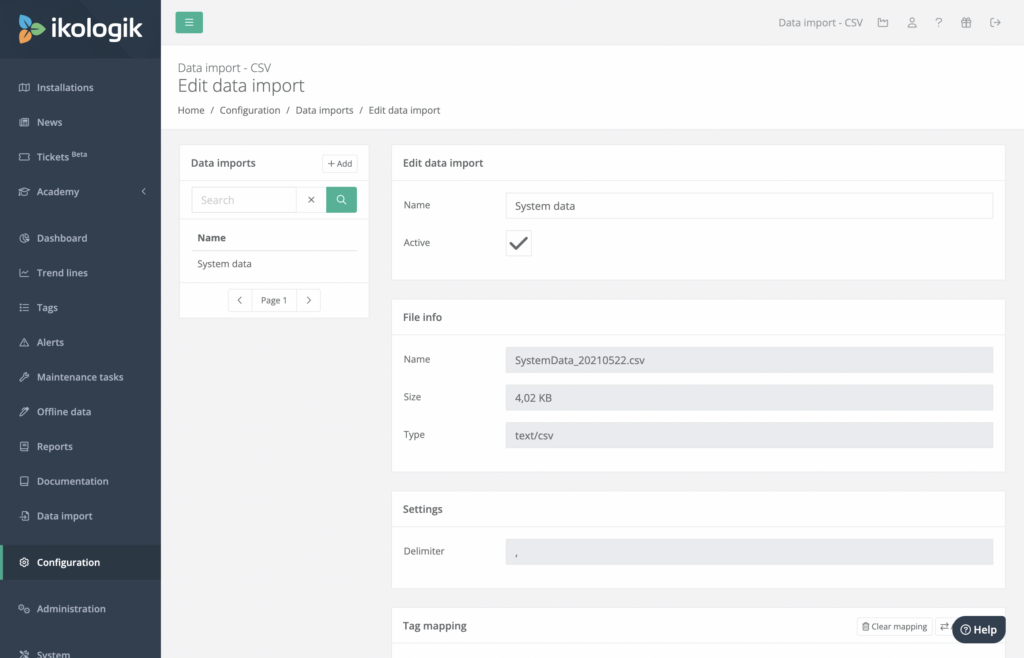
CSV
When creating a CSV data import, you will be asked to provide a name, delimiter and upload a sample CSV file. This sample file will be analysed after clicking on the ‘Save & load mapping’ button. As a result you will see that the first row of the CSV file will be read and used to configure the mapping.
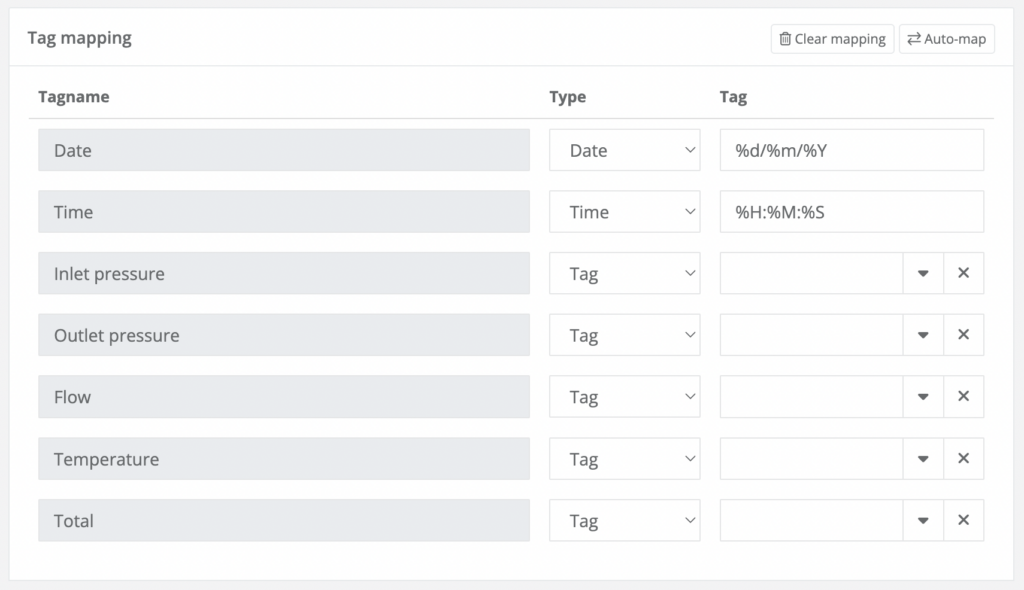
Once the mapping is loaded, you can start configuring what should happen with the columns when a similar file is imported. Each column can be assigned to a type. Depending on the selected type, the column will be processed differently during the import.
- Date: The column will be used to determine the date of the values. Additionally a date format should be specified. The format is explained in more detail below.
- Time: The column will be used to determine the time of the values. Additionally a time format should be specified. The format is explained in more detail below.
- Date-Time: The column will be used to determine the date-time of the values. Additionally a date-time format should be specified. The format is explained in more detail below.
- Tag: The column contains a value that should be imported as a specific tag. Additionally an existing tag should be selected.
FactoryTalk
FactoryTalk files come in two parts, a tagname and data file. When creating a new FactoryTalk data import, you will be asked to provide a name and upload a tagname file. This tagname file will be analysed after clicking on the ‘Save & load mapping’ button. As a result you will see the names of the data which is available in the data file, and which can be used to configure the mapping.
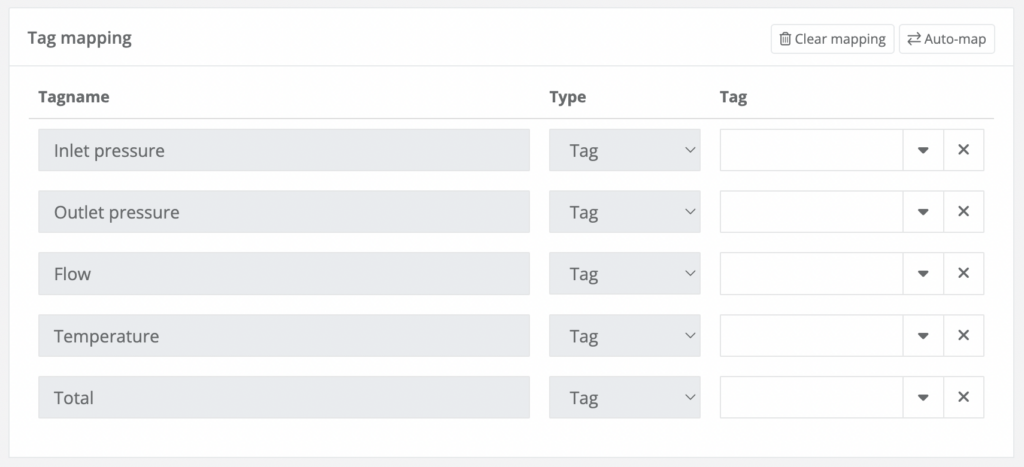
Once the mapping is loaded, you can start configuring what FactoryTalk file field should be import to what tag in the Ikologik Industrial Cloud application
Date-Time format
To parse date and time strings, the list of tokens below should be used.
| Token | Example | Description |
| %a | Sun | Weekday as abbreviated name. |
| %A | Sunday | Weekday as full name. |
| %w | 0 | Weekday as a decimal number, where 0 is Sunday and 6 is Saturday. |
| %d | 08 | Day of the month as a decimal number. |
| %b | Sep | Month as abbreviated name. |
| %B | September | Month as full name. |
| %m | 09 | Month as a decimal number. |
| %y | 13 | Year without century as a decimal number. |
| %Y | 2013 | Year with century as a decimal number. |
| %H | 07 | Hour (24-hour clock) as a decimal number. |
| %I | 07 | Hour (12-hour clock) as a decimal number. |
| %p | AM | Locale’s equivalent of either AM or PM. |
| %M | 06 | Minute as a decimal number. |
| %S | 05 | Second as a decimal number. |
| %f | 000000 | Microsecond as a decimal number. |
| %z | +0000 | UTC offset in the form ±HHMM[SS[.ffffff]]. |
| %Z | UTC | Time zone name. |
| %j | 251 | Day of the year as a decimal number. |
| %U | 36 | Week number of the year (Sunday as the first day of the week) as a zero padded decimal number. All days in a new year preceding the first Sunday are considered to be in week 0. |
| %W | 35 | Week number of the year (Monday as the first day of the week) as a decimal number. All days in a new year preceding the first Monday are considered to be in week 0. |
| %% | % | A literal ‘%’ character. |