
In the Installations module, you can quickly assess the status of your deployed installations. The installations in the list are sorted based on their current state. Installations with problems will appear on top, inactive or archived installations will appear at the bottom.
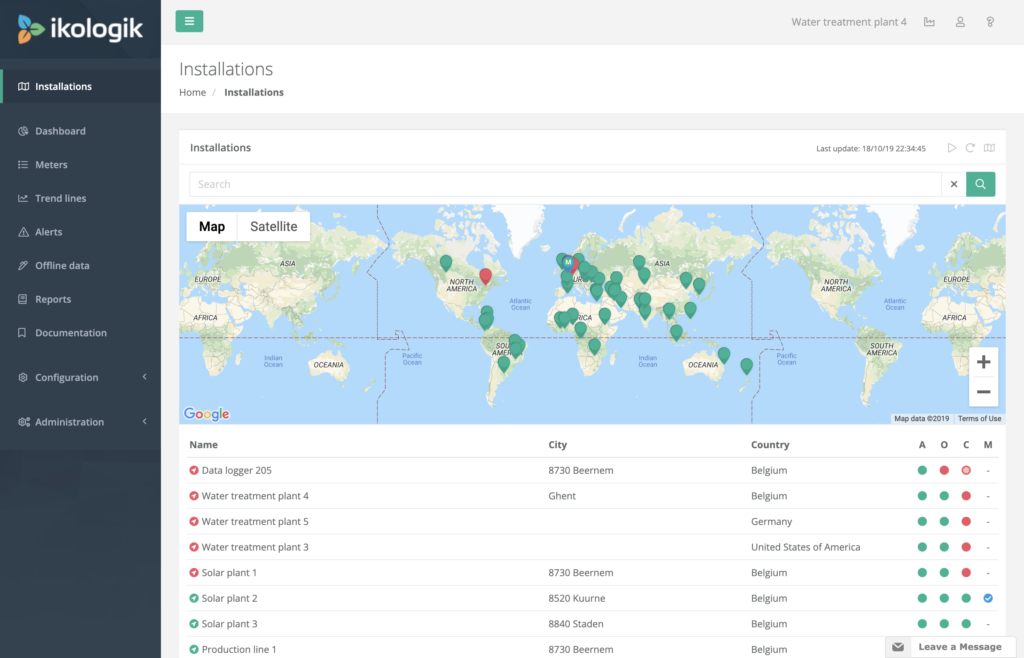
Installation list
The installation list displays all the installations available to your user account.
Installation status
On the left-hand side of the installation list, the health bullet displays the current state of each installation. Following health statuses are possible:
 | The system is running without warnings or errors |
 | There are active warnings |
 | There are active errors |
 | The number of warnings exceeds the threshold for the current retention period |
 | The number of errors exceeds the threshold for the current retention period |
 | The system is inactive |
 | The system is archived |
Health indicators
On the right-hand side of the installation list, you can find the health indicators that display the installation’s status in more detail. Four columns are presented, one column to show if the installation is in maintenance, the three other columns are used to reflect the installation’s health:
- A – Availability: Errors or warnings related to the installation’s availability.
- O – Operation: Errors or warnings related to the installation’s operation, that can lead to availability issues.
- C – Connectivity: Errors or warnings related to the installation’s connectivity, which can lead to data loss or data not being displayed in real-time.
- M – Maintenance: Displays if the installation is currently in maintenance mode.
While an alert is active, and the alert is related to one or more health categories, it will be reflected through the installation’s health indicators (A, O and C).
Following health statuses are possible:
 | No alerts are active for current category |
| Warnings alerts are active for current category |
| Error alerts are active for current category |
| The number of warnings for current category exceeds the threshold for the current retention period |
| The number of errors for current category exceeds the threshold for the current retention period |
The health categories an alert is assigned to can be configured in the Alert Types configuration module.
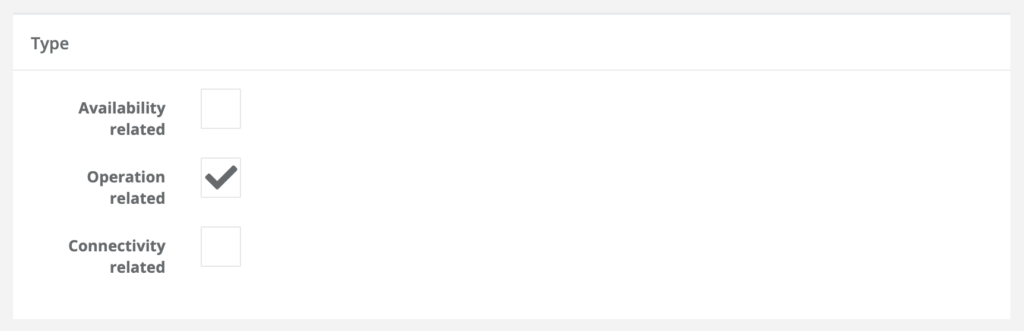
If no health categories are assigned to an alert type, the generated alerts will not be taken into account to update the installation’s health status.
Retention period
In the installation’s configuration, you can specify if a retention period should be used to define the installation’s health.
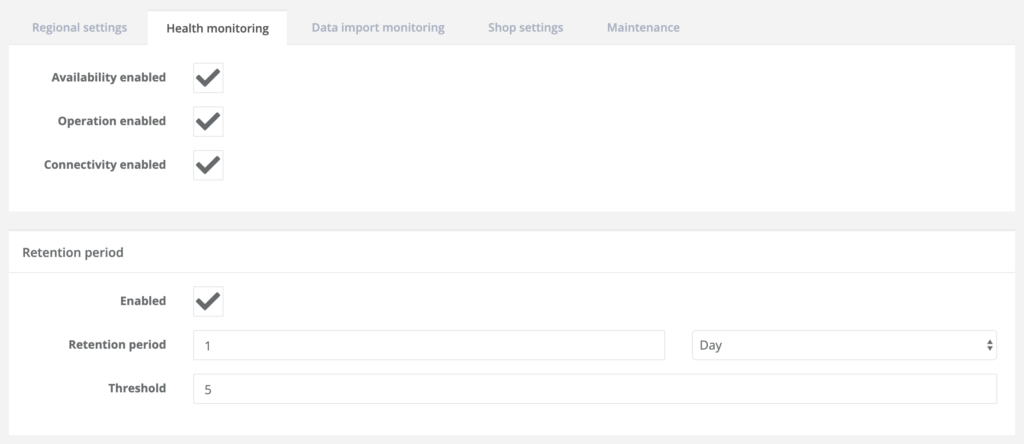
The retention period allows you to specify a retention period duration and threshold. If during the retention period, the number of alerts exceeds the specified threshold, the health of the installation will be marked accordingly.
Map
You can hide or change the size of the map by clicking on the ‘Actions’ button in the upper right-hand side corner of the installations module.
The location and zoom level of the map are stored in your user account and will be used when you return to this module.
The health bullets of the installations for which the location coordinates are set are marked with an arrow, these installations will be visible on the map. If no coordinates are set, the installation will not appear on the map.
 | An example of an active health marker with coordinates set |
The coordinates of the installation can be configured through the Installation configuration module.
When multiple markers for the same location are displayed on the map, the markers will be layered based on the importance of their current status. In order of importance: error, warning, ok, inactive, archived.